
This is a step-by-step guide for referring an applicant to OneApp Greenlight through a partnered non-profit. Much of the process is the same for general applicants, with some small key differences.
How to refer a new applicant
- In your OneApp account, click the Refer a New Applicant button at the top right of your screen.

- On the Refer a New Applicant page:
- Enter the Lease Details:
- Property Name: The name of your property.
- Lease Duration: The duration of the lease in months.
- Enter the Lease Details:
-
- Enter the Monthly base rent:
- The fixed monthly rent, excluding utilities and fees.
- Enter the Monthly base rent:
-
-
- The amount of the voucher should be subtracted from this base rent
- For example, if base monthly rent is $1,200 and the renter's voucher amount is for $900, the amount that should be entered is $300.
- The amount of the voucher should be subtracted from this base rent
-
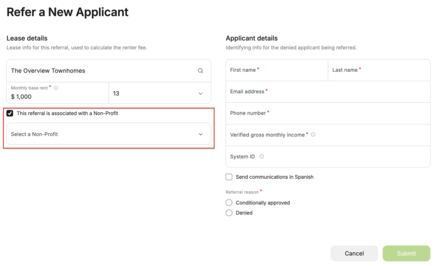
-
- After selecting the nonprofit program, enter the Applicant details. For the Referral reason select Conditionally approved. Under Reason details select Housing Authority Participant.
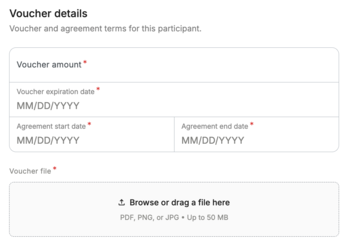
- Complete the relevant details for the voucher information
- Checking the box to send the referral communications in Spanish.
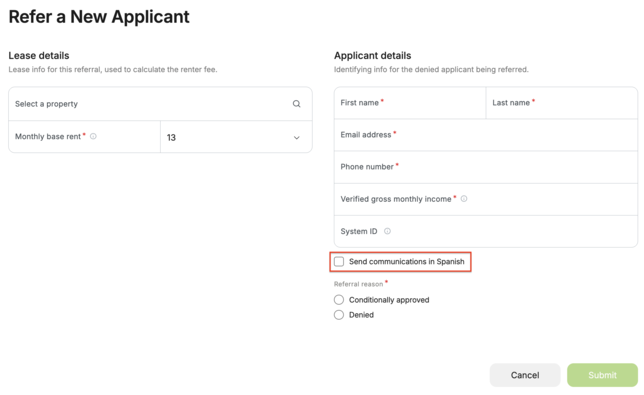
- Click Submit.
- In the pop-up window, check the box to acknowledge that the resident has already been screened.
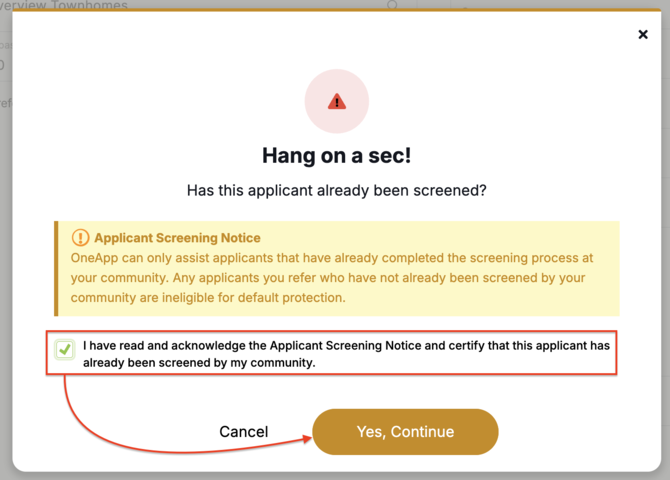
⚠️ Please Note: We cannot cover applicants who have not been screened by your community. Any applicants you refer who have not already been screened by your community are ineligible for default reimbursement. Learn more about default reimbursement requirements.
- Click Yes, Continue.
That's it! Once your referral is submitted, the applicant will receive a link from us via email to submit our free application and we'll guide them through the rest of the application process, keeping everything seamless for you and your applicant.