
If a team member no longer needs access to your property's OneApp account, you can remove them in just a few steps. Keeping your management team up to date ensures that only authorized users can refer applicants, track statuses, and manage agreements.
🏆 Pro Tip: Be sure to review and update your team's access regularly to ensure your account stays secure.
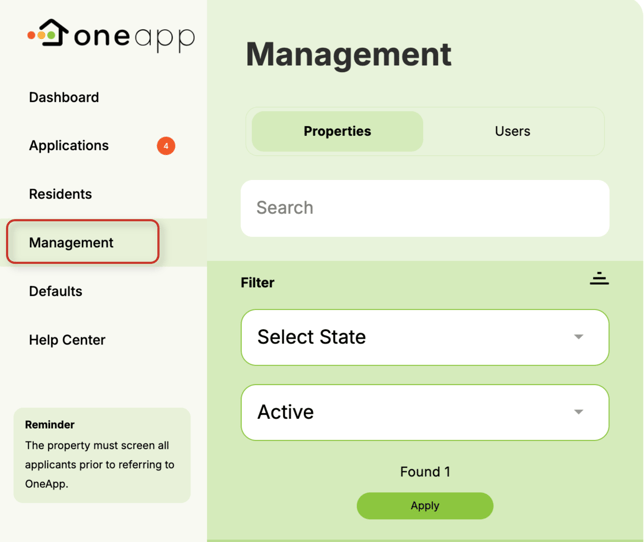
- In your OneApp account, click the Management tab in the left navigation bar
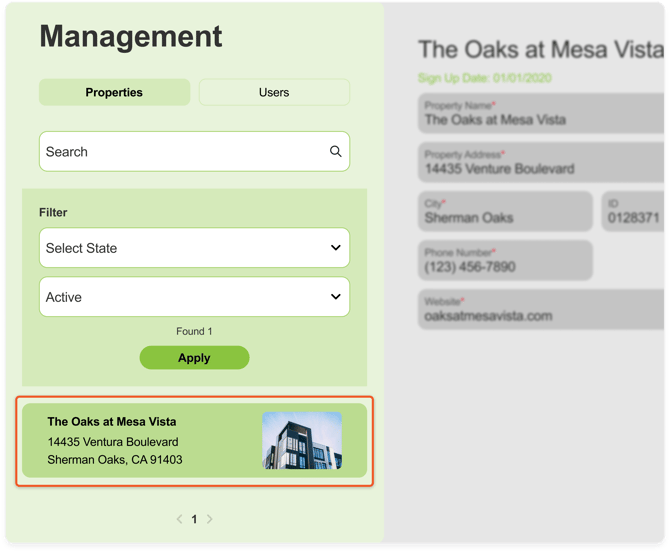
- On the Management page, select the property you'd like to remove the user from
- In the property detail window, scroll down to see the Property Users.
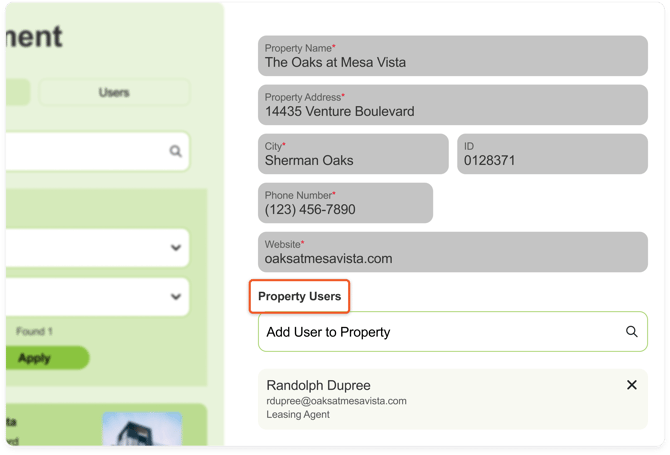
- Find the user you'd like to remove and click the X icon next to their name.

⚠️ Make sure to click "Save" after removing the user in order for your changes to take effect.
Once removed, the user will no longer have access to your property's OneApp account.