
If the worst happens, and a renter covered by OneApp defaults on their lease, we protect you against losses and damages up to 3x the base rent. We make submitting default reimbursements headache and hassle-free, so you can get the support you need without unnecessary delays.
⚠️ Before you begin, please ensure that you have all the required documentation for your default reimbursement request. Learn more about what required documents you need before you get started. Please also confirm that the resident has moved out and you have regained possession of the unit.
Start a new default reimbursement request
- In your OneApp account, click the Residents tab in the left navigation bar.
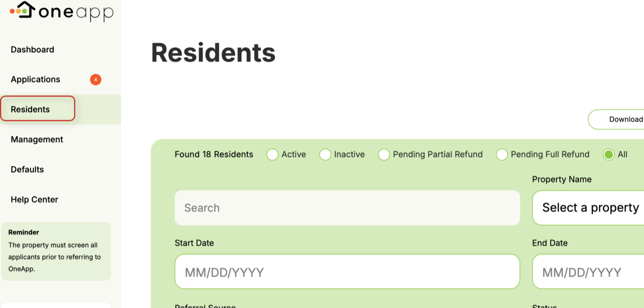
- On the Residents page, use the search panel to find the resident.
- Click the Start a Default Reimbursement link next to the resident you want to submit a reimbursement request for.

Reimbursement Request Types: What to Submit for Each Situation
Below are quick-reference checklists based on common default reasons.
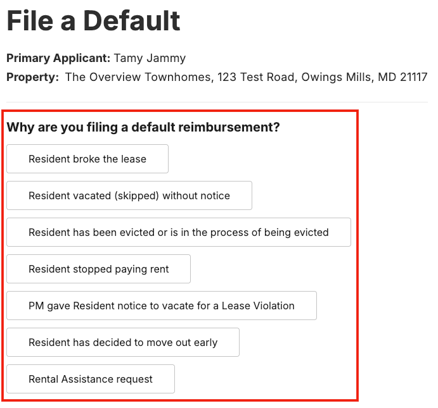
🚪 1. Resident Broke the Lease / Moved Out Early
Always Required:
- Lease agreement
- Full accounting ledger
- Income verification
Dependent on the options selected, the following may be required:
- Incoming lease agreement (Standard Payout)
- Supporting damage documentation
- Supporting legal expense documentation
🏚 2. Resident Vacated Without Notice (Abandonment)
Same as Option 1 (Resident Broke the Lease / Moved Out Early).
⚖️ 3. Eviction Started or Completed
Always Required:
- Lease agreement
- Full accounting ledger
- Legal expense documentation
- Income verification
- Non-payment notices
- All eviction documents
May Also Be Required:
- Incoming lease (Standard Payout)
- Damage documentation
💸 4. Resident Stopped Paying Rent (No Eviction Started Yet)
Required:
- Lease
- Full Accounting Ledger
- Income documentation
- Non-payment notices
⚠️ Please note: This option should not be used if the resident is past thirty (30) days since eviction should have started (per our Participation Agreement).
📄 5. PM Issued Notice to Vacate for Lease Violation
Always Required:
- Lease
- Ledger
- Income documents
- Lease violation notice(s)
Depending on selections:
- Damage documentation
- Legal expense documentation
🕊 6. Resident Terminated Lease Early
Same as Option 1.
💵 7. Rental Assistance Request
Always Required:
- Lease
- Ledger
- Income verification
- Rental Assistance Form
⚠️ If processed, no future reimbursement request can be submitted for this resident. Learn more about the rental assistance option.
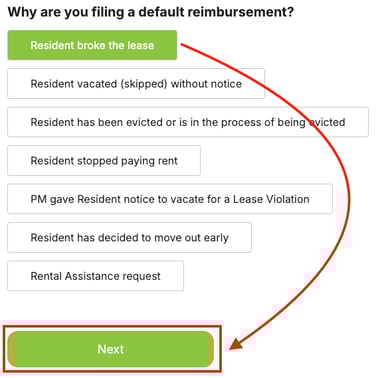
- Once you've selected a reason, click Next at the bottom of the screen. See example image below.
Default Details
- On the Detail page, answer the questions and/or provide the following information for the request:
- Is the default reimbursement request being made on the original lease?
- Lease Duration in Months
- Lease Start Date
- Lease End Date
- Has the renter moved out?
- Move Out Date
- Date of First Missed Rental Payment
- Rental Losses
- Is there a Standard Security Deposit?
- Do you use a Security Deposit Alternative?
- Are there damages to be claimed?
- Are there any legal fees?
- Has the unit been re-rented?
Please Note: If you chose to submit a reimbursement request before the unit is re-rented, you are choosing an early payout. With an early payout, you may not receive the full maximum payout amount available to your property. To benefit from the full max coverage, you may want to wait to submit your request until the unit is re-rented.
Your Payout Options
💎 Standard (Maximum) Payout
- Must wait until the unit is re-leased
- Must submit the incoming lease agreement
⚡ Early Payout
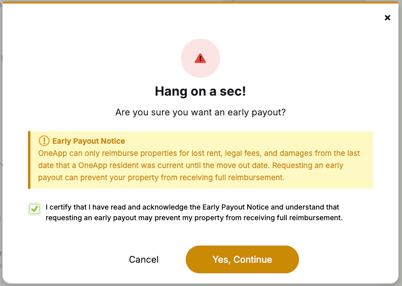
- Early payout and no requirement for waiting for the unit to be re-leased
- No incoming lease agreement required
- Payout calculated from the first missed payment → move-out date
Please note: The payout will include legal fees and damages (if present).
Required Documents
- At the bottom of the Detail page, upload all required documents. Learn more about required documents for defaults.
- Once all your documents are uploaded, click Next at the bottom of the page.
Submit the reimbursement request
Review Request Details
- On the Review Checklist page, review the request details and ensure everything's correct before you submit.
- To edit the reimbursement request:
- At the top of your screen, click the Action dropdown menu > Select Edit Details
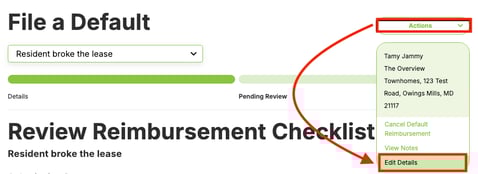
- Make your edits and click Next at the bottom of the screen
- To submit the reimbursement:
- Check the box at the bottom of the page, acknowledging it's been reviewed and everything's correct.
- Click Next.
Select Payout Method
- Select the payment method for payout:
- ACH: Receive the payout via direct deposit
-
- Send a Check: Receive the payout by check via mail
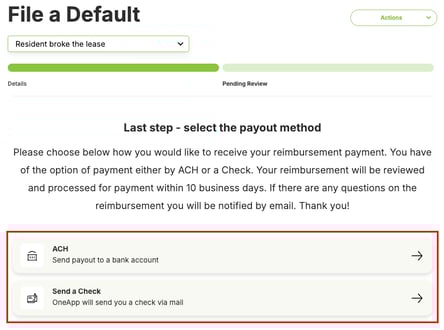
- For payouts via ACH:
- In the pop-up, enter your Employer Identification Number (EIN)
- Click Continue and Confirm
- In the Stripe pop-up, click Agree and Continue to authenticate your account
- For payouts via Check:
- In the pop-up window, provide the Property Name and Address.
- Click Submit.
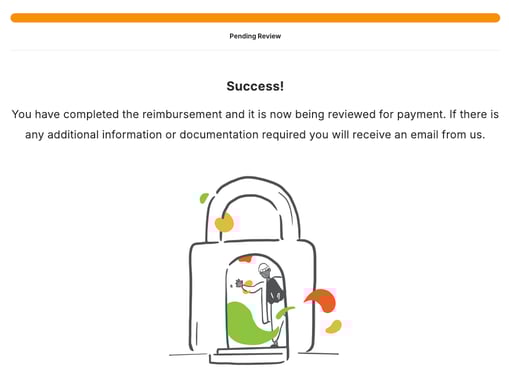
Please note: You have thirty (30) days from the Move out Date to submit your request. Once submitted, you have thirty (30) days to complete from either a) end of lease or b) unit being re-rented.
Need Help? We're Here to Support You.
If you’re unsure about:
- Which reimbursement request type to select
- Which documents are needed
- How to calculate your reimbursement payout
Just reach out — we’re happy to help.
Simply email us at 📧 defaults@oneapp.rentals during normal business hours (🕐 Monday–Friday).